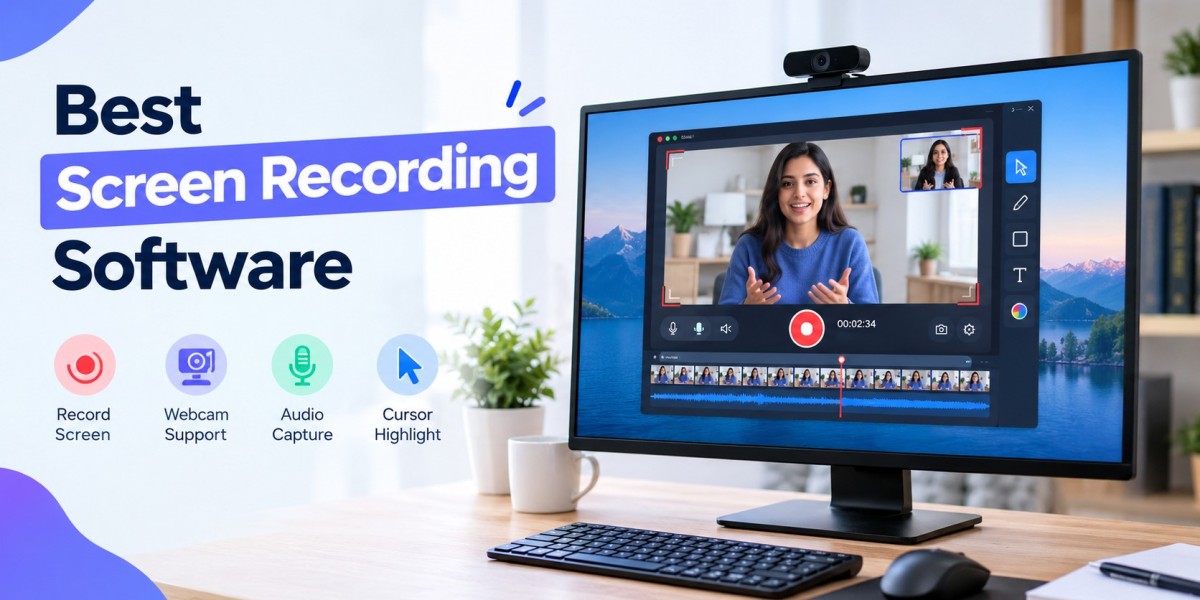

Screen recording software makes it easy to capture everything happening on your computer screen. Whether you want to create tutorials, record online classes, capture gameplay, or explain a software problem, the right screen recorder can save time and improve communication.
Today, many screen recording programs offer useful features such as audio recording, webcam support, video editing, and screen sharing. Some tools are free, while others provide advanced features through paid plans. In this guide, we will explore the best screen recording software, free recording tools, OBS Studio, and Windows screen recording options.
What Is Screen Recording Software?
Screen recording software is a program that captures activities on your computer screen and saves them as a video. Depending on the tool, you can record your entire screen, a specific window, or a selected area.
A screen recorder may also allow you to record:
Computer system audio
Microphone voice
Webcam video
Mouse movements
Application windows
Presentations and tutorials
Online meetings and classes
Screen capture and recording software is useful for students, teachers, content creators, marketers, gamers, and business professionals.
Why Do You Need a Screen Recorder?
A screen recorder can help you explain information more clearly than written instructions. Instead of describing every step, you can record the process and share the video with others.
Here are some common uses:
1. Creating Tutorials
You can record your screen while explaining how to use an application, website, or online platform. Tutorials are useful for customers, employees, students, and beginners.
2. Recording Online Classes
Students and teachers can use a screen recorder to capture educational presentations and demonstrations. Always follow the rules of the platform and obtain permission when required.
3. Recording Gameplay
Gamers can use screen recording programs to capture gameplay, walkthroughs, and live streaming sessions. Tools such as OBS Studio provide advanced recording and streaming features.
4. Explaining Technical Problems
A recorded video can help technical support teams understand software errors. You can show the exact problem instead of explaining it only through text.
5. Creating Business Presentations
Businesses can record product demonstrations, training videos, onboarding guides, and internal instructions using screen recording software.
Best Screen Recording Software
The best screen recording tool depends on your requirements, operating system, budget, and desired features. Some users need a simple recorder, while others need advanced editing and streaming options.
1. OBS Studio
OBS Studio is a free and open-source screen recording and live streaming application. It supports Windows, macOS, and Linux.
The OBS screen recorder allows you to combine different sources, including:
Computer screen
Application windows
Webcam
Images
Microphone
System audio
Capture cards
OBS Studio is suitable for gamers, educators, content creators, and users who need more control over recording settings. It does not add an OBS watermark to recordings. However, beginners may need some time to understand its interface and settings.
2. ScreenRec
ScreenRec is designed for users who want to record and share their screen quickly. It can be useful for creating short tutorials, explaining problems, and sharing video instructions.
Before choosing any free screen recorder, check its current recording limits, storage options, export features, and account requirements.
3. ShareX
ShareX is a Windows-focused tool that supports screenshots and screen capture. It can be useful for users who need more than basic screenshots.
ShareX is suitable for technical users who want flexible capture options. However, its interface may feel less simple to beginners compared with basic screen recording tools.
4. Loom
Loom is designed for recording and sharing videos quickly. It can be useful for workplace communication, tutorials, customer support, and team updates.
Loom focuses on easy sharing and collaboration. However, free-plan limits can apply, so users should check the current plan details before selecting it.
5. Camtasia
Camtasia combines screen recording with video editing features. It may be useful for users who want to create professional tutorials, training videos, and educational content.
Depending on the plan, it can provide editing features such as:
Video trimming
Cursor effects
Annotations
Transitions
Captions
Audio editing
Camtasia is generally more suitable for users who need editing tools along with screen recording.
What Is a Screen Recorder Without Watermark?
A screen recorder without watermark creates videos without placing a brand logo or watermark over the recorded content.
Watermarks can be distracting, especially when you create professional tutorials, presentations, or educational videos. Some tools provide watermark-free recording for free, while others may require a paid plan.
Before using a screen recorder, check the following:
Does the free version add a watermark?
Is there a recording time limit?
Can you export videos without restrictions?
Is high-quality recording available?
Are commercial-use rights included?
Does the tool require an account?
OBS Studio and some other recording tools support watermark-free recording, but features and plan conditions may vary between applications.
Best Windows Screen Recording Tool
Windows users have several built-in recording options. You may not always need to install a separate application.
1. Windows Game Bar
Windows Game Bar can be opened using the Windows + G shortcut. It is useful for capturing application activity and gameplay.
It may not be the best option for every recording task because its features and supported recording situations are more limited than advanced screen recording programs.
2. Windows Snipping Tool
The Windows Snipping Tool includes a screen recording feature on supported versions of Windows. It can be useful when you want to record a selected area of your screen without installing additional software.
This option is suitable for simple recordings, demonstrations, and quick explanations.
3. Third-Party Recording Programs
If you need advanced audio settings, webcam overlays, editing features, or live streaming, you may prefer third-party screen recording software such as OBS Studio, Loom, or Camtasia.
The best Windows screen recording tool depends on whether you need simple capture or advanced video production.
How to Choose the Right Screen Recorder
Before downloading a screen recorder, consider the following features.
1. Video Quality
Check whether the software supports the video resolution you need. For tutorials and presentations, clear video quality is important because viewers must be able to read the screen.
2. Audio Recording
Choose a tool that supports the audio you need. Some applications can record microphone audio, system audio, or both.
3. Webcam Support
If you want to show your face while recording your screen, select a tool that supports webcam recording or webcam overlays.
4. Editing Features
Some screen recording programs only capture video. Other tools also provide editing features such as trimming, captions, zoom effects, and annotations.
5. Recording Time
Free plans may have recording time limits. Check the limits before choosing a tool for long tutorials, classes, or meetings.
6. Export and Sharing Options
Consider whether the software lets you download the video, save it locally, upload it to the cloud, or share it through a link.
7. Operating System Support
Check whether the application supports your device. Some tools work on Windows and macOS, while others are designed for a specific operating system.
Screen Capture for Windows: Simple Steps
You can follow these general steps to record your screen on Windows:
Choose a screen recording tool.
Open the application or window you want to record.
Select the recording area.
Enable microphone or system audio if required.
Click the Start Recording button.
Complete the activity you want to capture.
Stop the recording.
Save or export the video.
Review the video before sharing it.
The exact steps may vary depending on the screen recorder you use.
Tips for Better Screen Recordings
Follow these tips to create clear and useful recordings:
Close unnecessary applications before recording.
Remove private information from your screen.
Check your microphone before starting.
Use a quiet environment for voice recordings.
Keep the cursor movement clear and slow.
Record a short test video first.
Use a suitable video resolution.
Edit unnecessary pauses when needed.
Save your recordings in an organized folder.
Ask for permission before recording other people or private meetings.
Frequently Asked Questions
What is the best screen recording software?
The best software depends on your needs. OBS Studio is useful for advanced recording and streaming, while Loom is designed for quick recording and sharing. Camtasia may be suitable for users who need recording and video editing features.
What is the best free screen recorder?
OBS Studio is a popular free and open-source option. Other tools may be suitable for simple recording, screenshots, or quick sharing. Compare the features and restrictions before choosing one.
Can I record my screen without downloading software?
Yes. Windows provides built-in options such as Game Bar and the Snipping Tool on supported systems. These tools are useful for basic recording tasks.
Does OBS Studio add a watermark?
No. OBS Studio does not add an OBS watermark to your recordings. It is free and open source.
Can I record my screen with audio?
Yes. Many screen recorders support microphone audio, system audio, or both. Check the audio settings before beginning your recording.
What is the difference between a screen recorder and screen capture software?
A screen recorder usually captures video of your screen. Screen capture software may focus on screenshots, video recording, or both. Some advanced tools also include editing and sharing features.
Conclusion
Choosing the right screen recording software depends on your recording goals, device, budget, and required features. If you need advanced recording and streaming controls, OBS Studio can be a useful option. For quick screen sharing, tools such as Loom may be more convenient. Windows users can also try built-in tools such as Game Bar and the Snipping Tool.
Before selecting a screen recorder, compare video quality, audio support, recording limits, editing features, and watermark restrictions. The right screen recording program can help you create clear tutorials, presentations, training videos, and useful demonstrations.